
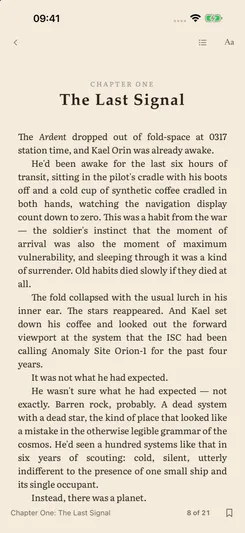
Supported file formats
Libra opens EPUB, FB2, PDF, CBZ, TXT, HTML, Markdown, DOCX, MOBI and AZW3 files. It also recognises FB2 books packaged as .fb2.zip.
The reading controls depend on the format. Text in an EPUB can be resized and laid out again to fit the screen. PDF pages and comic images keep their original layout.
Open a book from your device
- Open Drives and select On My Device.
- Tap Upload and choose the book file from the file picker. In this section, Upload imports the file into Libra’s local storage.
- Wait for Libra to process the file, then tap the book to open it.
On iPhone and iPad, you can also use the Files app to copy books into Libra’s folder under On My iPhone or On My iPad.
For books stored elsewhere, see cloud storage or OPDS catalogs.
Change text and layout
In a book with reflowable text, show the reader controls and tap Aa to open Text & Layout.
- Reading mode: choose Paged or Scroll.
- Typography: change the font, font size, line height and letter spacing.
- Layout: choose left-aligned or justified text and adjust paragraph spacing and side margins.
These settings are saved for the book. Use Reset to app defaults to reset them. To change the colour scheme, open Settings → Reading palette and choose White, Black or Sepia.
Reading PDF and CBZ files
PDF documents and CBZ comic archives are displayed as pages. The font and paragraph controls used for reflowable books do not change the text inside those pages.
Text selection in a PDF depends on the document containing selectable text. Scanned pages and comic images do not provide text to select.